Exercise Variants
Exercise variants (also called alternating exercises) let you rotate between two or more exercises across training cycles. Instead of always doing the same exercise in a given slot, the app automatically cycles through your chosen alternatives each time you complete a full rotation of the plan.
When to use variants
Variants are useful when you want to:
- Rotate between similar exercises to reduce overuse and add variety (e.g. Bench Press one cycle, Incline Press the next)
- Run conjugate-style programming where the main lift changes every cycle
- Alternate between exercise variations that target the same muscle group differently
How the rotation works
Each variant group has a group key — a shared identifier that links the alternatives together. The app tracks a rotation index per group key. When you complete the last workout in the plan, the index advances by one, selecting the next alternative for all subsequent sessions.
If your plan has three workouts and your variant group has two alternatives:
| Cycle | Workout 1 | Workout 2 | Workout 3 |
|---|---|---|---|
| Cycle 1 | Alternative A | Alternative A | Alternative A |
| Cycle 2 | Alternative B | Alternative B | Alternative B |
| Cycle 3 | Alternative A | … | … |
You can also manually select a variant at any time from the home screen before starting a session.
Setting up variants
When adding a set, toggle Alternates with other exercises. This reveals:
- Group Key — a short identifier linking this group across workouts (e.g.
main-lift,squat-variant). Autocompleted from group keys already used in the plan. Always stored in lowercase - Alternative sub-forms — one per exercise, each with its own Set Name, Exercise name, Min/Max Reps, and optional Recommendation
Each group supports up to 2 alternatives.
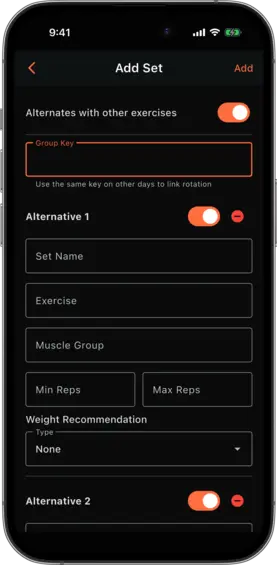
The group key must match exactly across all workouts where you want the same rotation to apply. For example, if Monday’s workout and Wednesday’s workout both have a “chest” group key, they share the same rotation index and will always show the same alternative on any given cycle.
Selecting a variant manually
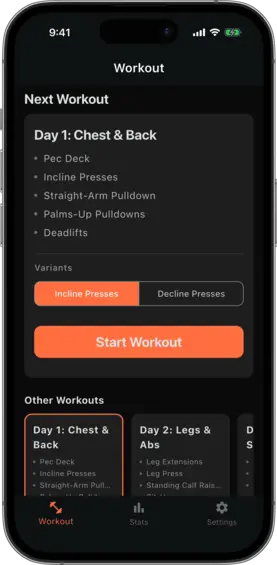
On the home screen, the Next Workout card shows a Variants section when the upcoming workout contains alternating groups. Each group is displayed as a row of chips — one per alternative. The currently selected variant is highlighted.
Tap any chip to switch to that alternative for the next session. Your selection is saved immediately and persists until the rotation advances at the end of a cycle.
Viewing variants in the workout
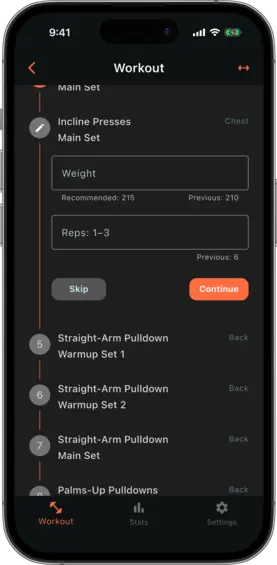
During a workout session, only the active alternative for each group is shown. The step title displays the resolved exercise name. If the active alternative differs from the first configured alternative, the original slot label is shown in smaller text below as a reminder of the configuration.
Managing variant sets
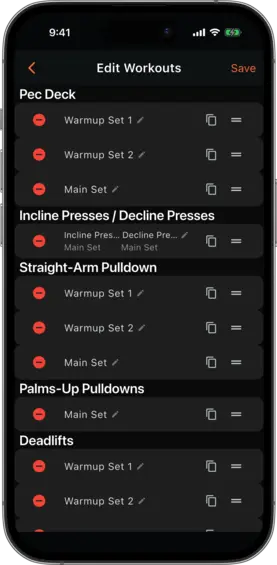
In the workout edit view, alternating sets belonging to the same group are displayed as a single combined entry (e.g. “Incline Press / Decline Press”) rather than as separate rows. Reordering, duplicating, or deleting the entry affects all alternatives in the group together.