Managing Plans
Viewing your plans
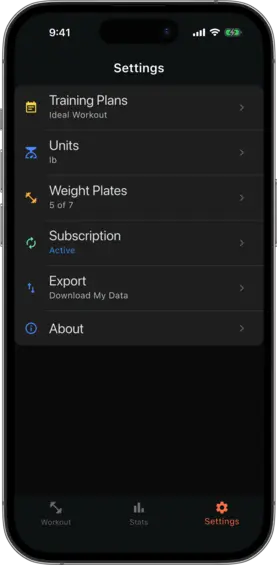
Open the Settings tab and tap Training Plans to see all your plans. The currently active plan is marked with a checkmark.
Creating a plan
Tap the + button on the Training Plans screen to create a new plan. Enter a name and confirm. The new plan starts empty — you can then add workouts to it.
Editing plans
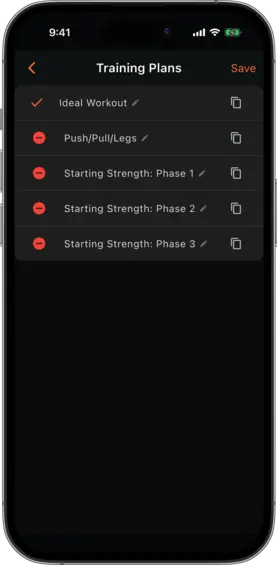
Tap the Edit button on the Training Plans screen to enter edit mode. In edit mode you can:
- Rename a plan — tap the plan name (the pencil icon indicates it is editable) to open a rename dialog
- Duplicate a plan — tap the copy icon next to a plan to create an identical copy with an auto-incremented name (e.g. “Push Pull Legs 2”)
- Delete a plan — tap the red minus icon. The active plan cannot be deleted and shows a checkmark instead of the delete button
Tap Save when done.
Switching the active plan
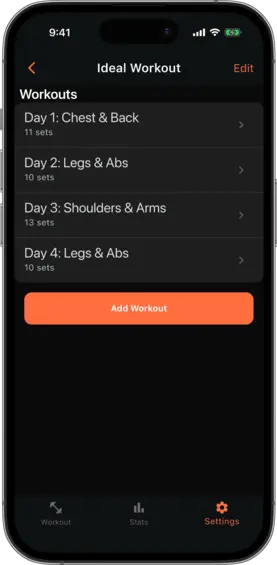
To make a different plan active, open its detail view and tap Set as Active Plan (or the equivalent switch action in your version).
Switching plans:
- Marks the selected plan as current
- Clears any workout in progress
- Resets the “last workout” pointer so the rotation starts from the beginning
- Clears all exercise variant rotation indices
Duplicating a plan
Duplicating copies the plan name (with an incremented suffix), all its workouts, and all sets within those workouts — including rep ranges, recommendations, and variant configuration. The duplicate starts as an inactive plan so you can edit it before switching.