Sets
A set defines a single exercise slot within a workout. Each set specifies what exercise to perform, a target rep range, and optionally a recommendation for how much weight or how many reps to aim for.
Set fields
| Field | Description |
|---|---|
| Exercise | The exercise name (e.g. “Bench Press”). Autocompleted from your exercise library |
| Set Name | A label for this slot within the workout (e.g. “Set 1”, “Top Set”). Used to track history — see below |
| Min Reps | Lower bound of the target rep range |
| Max Reps | Upper bound of the target rep range. If equal to Min Reps, displayed as a single number |
| Group Key | Only relevant for alternating exercises — links this set to a rotation group across workouts. See Exercise Variants |
The Set Name
The Set Name is more than a label — it is the key the app uses to look up your history for this specific slot when calculating recommendations.
For example, if you have two sets of Bench Press in a workout:
- “Warm-up” — 10–12 reps
- “Working Set” — 4–6 reps
Each has its own history tracked separately under those names. If you rename a set, its prior log data will no longer be matched for recommendation purposes.
Viewing sets in a workout
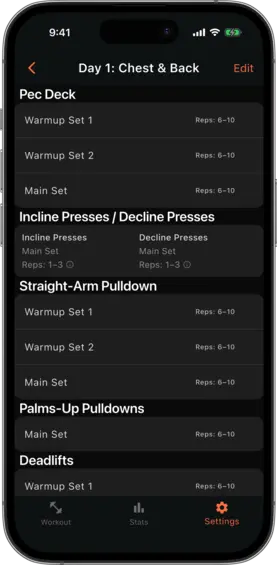
Open a workout from the plan detail view to see all its sets. Each set card shows:
- The exercise name (or combined name if it is an alternating group)
- The set name
- The target rep range
- An info icon (if a recommendation is configured) — tap it to see the recommendation details
- The group key (if the set belongs to an alternating group)
Adding a set
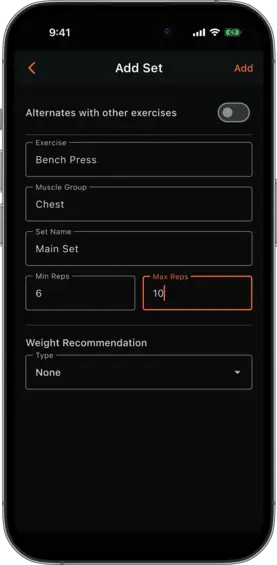
Tap Add Set within the workout detail or edit view. The add set dialog has two modes:
Single exercise
Fill in Exercise, Set Name, Min Reps, and Max Reps. Optionally configure a recommendation.
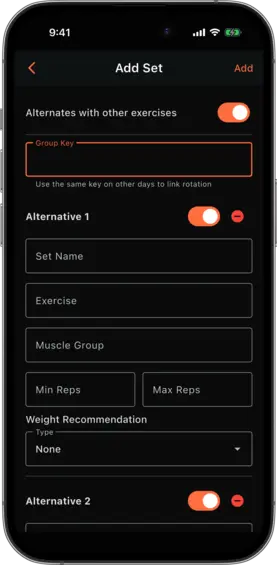
Alternating exercises
Toggle Alternates with other exercises to configure a set that rotates between multiple exercises across training cycles. See Exercise Variants for full details.
Editing sets
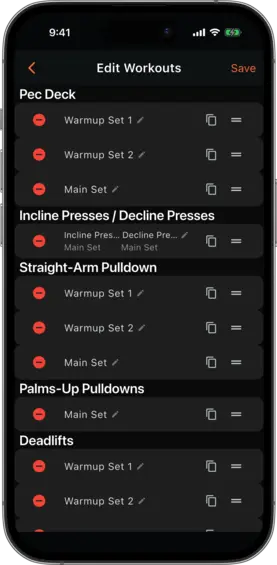
Tap Edit on the workout detail view to enter edit mode. In edit mode you can:
- Rename a set — tap the set name (pencil icon) to open a rename dialog. Note that renaming breaks the link to prior log history for recommendations
- Duplicate a set — tap the copy icon to create a copy with an auto-incremented name (e.g. “Set 1” → “Set 2”). All configuration including recommendations is copied
- Reorder — drag the handle to change the order sets appear in the session
- Delete a set — tap the red minus icon. For alternating sets, all alternatives in the group are removed together