Workouts
A workout is a named training day within a plan. The order of workouts in the plan determines the rotation — the app always advances to the next workout after a session is completed.
Viewing workouts in a plan
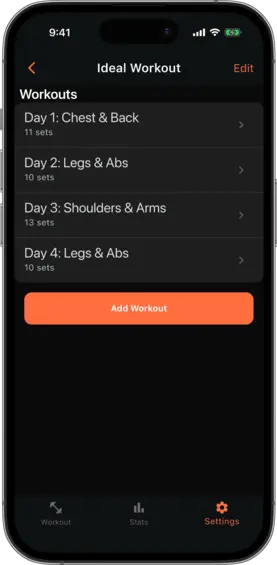
Open a plan from the Training Plans screen to see its workouts listed in order, along with a count of how many exercise slots each workout contains.
Adding a workout
Tap Add Workout at the bottom of the plan detail view. Enter a name for the new workout (e.g. “Day A”, “Push Day”, “Upper Body”). The workout is added to the end of the rotation.
Editing workouts
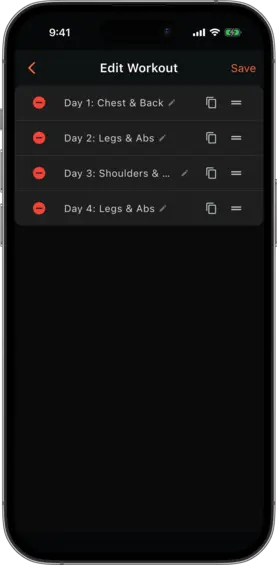
Tap the Edit button on the plan detail view to enter edit mode. In edit mode you can:
- Rename a workout — tap the workout name (the pencil icon indicates it is editable) to open a rename dialog
- Duplicate a workout — tap the copy icon to create an identical copy with an auto-incremented name. All sets, rep ranges, and recommendations are duplicated
- Reorder — drag the handle on the right to change the order workouts run in. The rotation follows this order
- Delete a workout — tap the red minus icon to remove it
Tap Save to commit all changes.
Workout rotation
Workouts run in the order they appear in the plan list. After the last workout is completed, the app loops back to the first. If you switch the active plan, the rotation resets.
The home screen always shows which workout is next based on which one was completed most recently.